 stashio
Install it.
Save something.
Choose your device and follow the steps. Start with a link you want to read.
Open your Android Pro gift
Get 1 month of Pro free, or win lifetime Pro. Up to 5 of every 100 new draws receive Lifetime, while codes last.
- Use the button above to open Google Play with your code filled in. Paste the copied code if needed.
- Review the free Lifetime offer and Google account, then choose Add Item to claim it.
- Open Stashio to access Pro. If it has not appeared, go to Settings → Restore purchases.
Your Lifetime code can be redeemed once. Keep it private until you redeem it.
Use FREE1MONTH inside the Stashio Android app:
- Copy the code, then open Stashio → Settings → Redeem a code → Continue.
- In the Google Play payment sheet, tap the arrow next to the payment method → Redeem code → paste FREE1MONTH.
- Check the free month, renewal price and renewal date before confirming.
Eligibility follows the offer terms Google Play shows for your account.
Return with the same browser to see your gift again. Reloading does not change the result.

- 01
Install and open the app
Download from the App Store. Complete onboarding and review the AI processing choices.
- 02
Save an article from Safari
Open an article → Share → Stashio. If it is missing, open More at the end of the app row and enable Stashio.
- 03
Find it in your Library
Open Stashio and select the saved item. AI content may take additional processing time. Choose Read full article when available.
- 04
Read on iPad
On iPad, rotate to landscape or enlarge the window to view library and content side by side where supported.
- 01
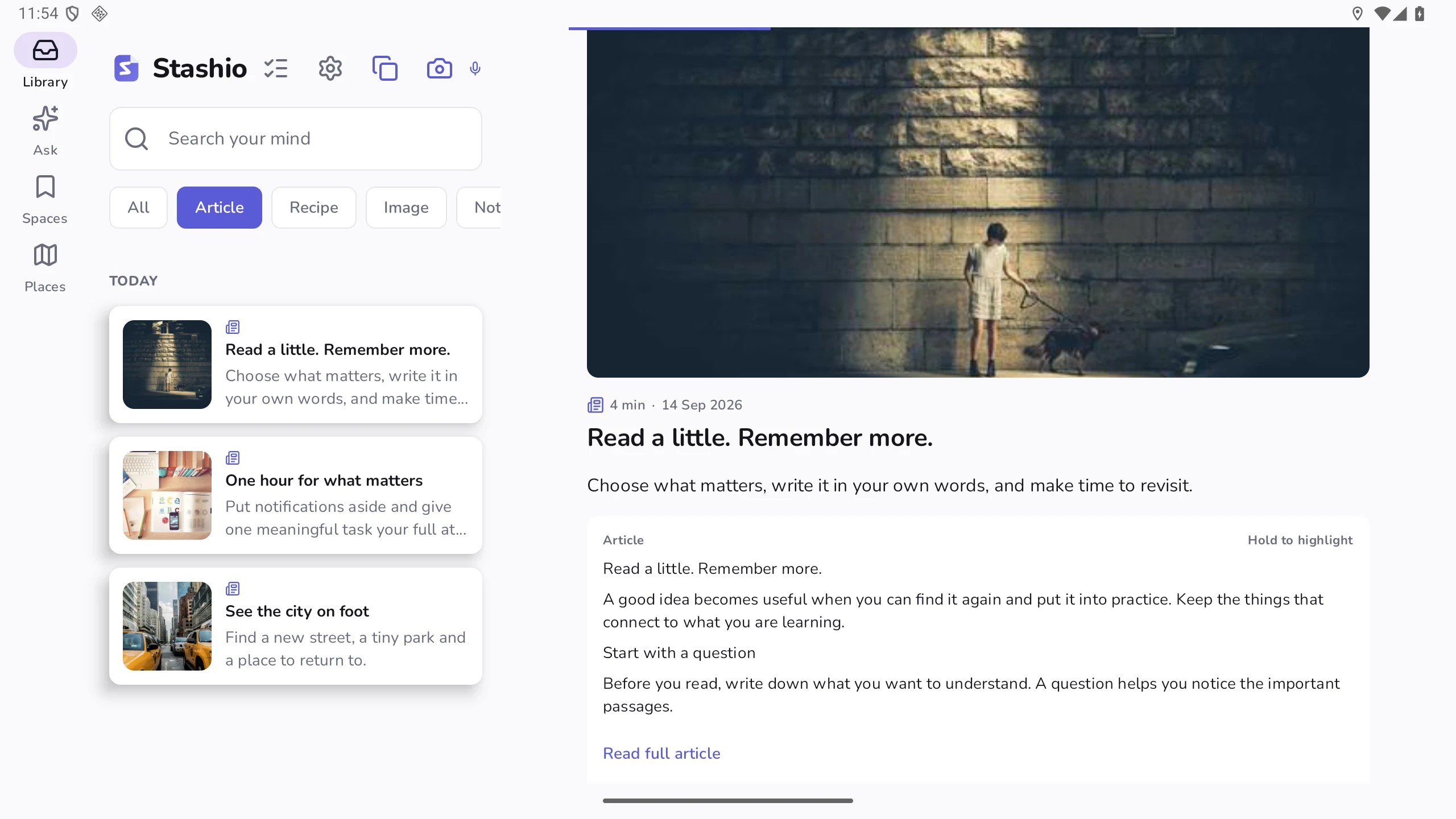
Install from Google Play
Open the app and complete onboarding. Grant permissions as needed for the actions you use.
- 02
Share content to Stashio
From your browser or gallery, choose Share → Stashio. Return to Library to see the saved item.
- 03
Try reading a recipe
Open a processed recipe. When detected steps are available, choose Cook step by step for a kitchen-friendly view.
- 04
Rotate your tablet
Open Library or Spaces on the bigger screen. The layout adapts to the device width.
- 01
Start with your phone
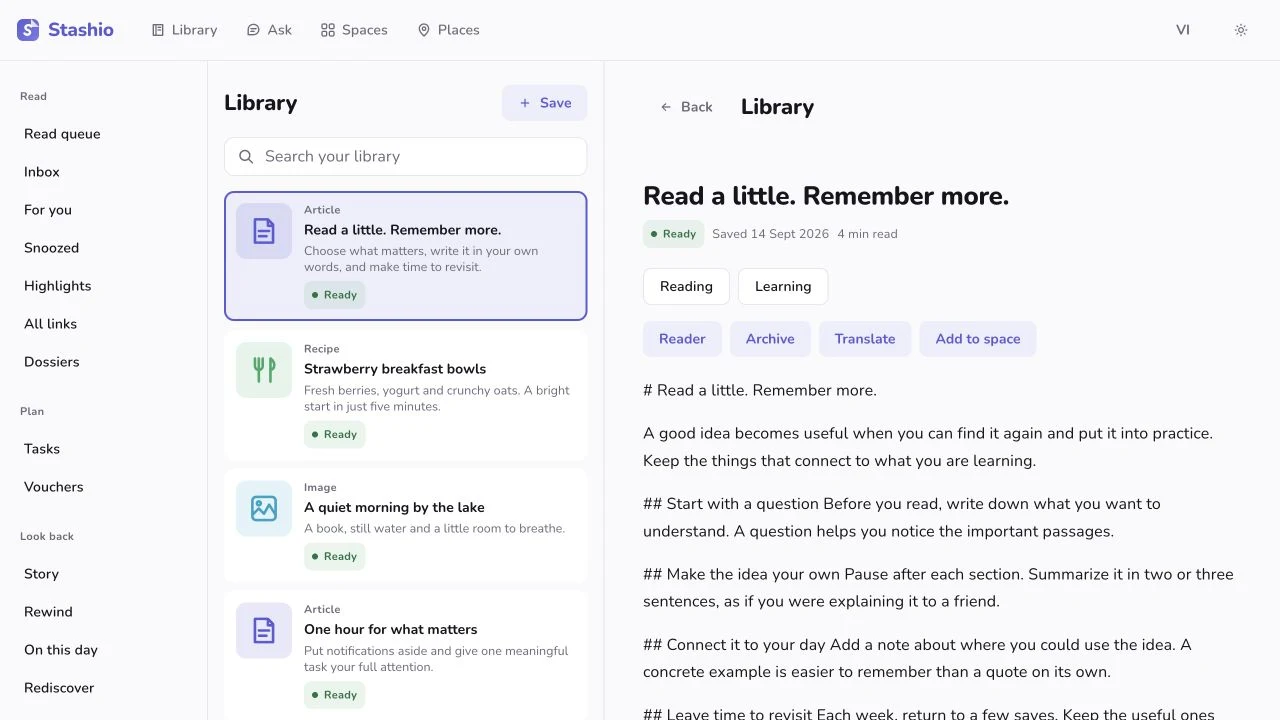
You need the Stashio iOS or Android app to pair your library with the web.
- 02
Open the QR on your computer
Go to app.uranashel.com. Keep the pairing QR code open for your phone to scan.
- 03
Scan and confirm pairing
In the phone app: Settings → Linked devices → Scan QR on your computer. Confirm the correct device.
- 04
Use your library on a bigger screen
After pairing, open Library, Ask, Spaces or Places. Add notes and files, read articles and search your saves.

- 01
Install the official extension
Install Stashio from the Chrome Web Store on your computer. Pin its icon for easy access.
- 02
Pair with a QR code
Open the extension and its QR window. Use Scan QR on your computer under Settings → Linked devices in the phone app.
- 03
Save the page you are reading
Open a normal webpage → Stashio icon → Save this page. Internal browser pages cannot be saved.
- 04
Or keep just one passage
Select text or right-click a link → Save to Stashio. The extension currently displays in English.
Saved it. What’s next?
Try creating a Space, reading an article or asking your library. Each feature in the library includes a quick guide.
Explore features